AI 3D Pop-out Effect
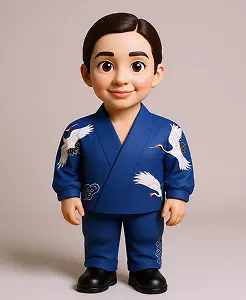
Turn your photo into a striking 3D pop-out image with the AI 3D Pop-Out Effect. Create a realistic out-of-frame appearance for portraits, social media posts, and creative projects.
How to Use AI 3D Pop-Out Effect
Upload Your Photo
Upload a clear, high-quality photo with the main subject fully visible. Images with good lighting and a distinct subject generally produce better results.
Describe Your Desired Effect
Describe how you want the final image to appear. You can specify the pop-out scene, frame style, background, depth, lighting, perspective, and the direction in which the subject should emerge.
Generate Your Image
Start the generation process and let the AI create a 3D pop-out image based on your photo and description. Review the result and refine your description when needed.
Why Use Our AI 3D Pop-Out Effect?
Create the Effect You Imagine
Describe the scene, perspective, background, lighting, and pop-out style you want. The AI uses your photo and description to produce a more personalized result.
Realistic Depth and Perspective
Add visual depth, natural shadows, and an out-of-frame appearance that makes the subject look as though it is emerging from the image.
Make Photos More Eye-Catching
Transform ordinary portraits and photos into striking visuals designed to stand out on social media, advertisements, and creative projects.
Simple Photo Transformation
Create a detailed 3D pop-out image without manually separating subjects, arranging layers, or building perspective effects from scratch.
See Other Cool Image Effects


What Our Users Say
![[Customer Name]](https://staticassets.maxstudio.ai/sites/maxstudio/content.maxstudio.ai/Public/featured/m1.webp)
[Customer Name]
Content Creator
"I uploaded my portrait and described how I wanted the subject to emerge from the frame. The final image followed my idea and created a convincing 3D pop-out effect."
[Customer Name]
Graphic Designer
"The depth, perspective, and shadows made the result look professionally edited. My ordinary photo became a much more striking visual."
[Customer Name]
Social Media Manager
"I created an eye-catching image for a social media post without manually editing layers or separating the subject. The process was simple, and the result was ready to use."